Why Is One Earbud Louder Than the Other? Causes and Easy Fixes
It can be an incredibly frustrating scenario when one earbud sounds noticeably louder than the other. Before you assume your earbuds are broken and toss them out, the culprit is often something simple that you can easily fix yourself. This comprehensive guide will walk you through the most common reasons and provide straightforward solutions.
Why Is One of My Earbuds Louder Than The Other?
Here are the primary reasons why your earbuds might be experiencing a volume imbalance:
-
Earwax blocking the speaker mesh
-
Low battery levels
-
Uneven Bluetooth connection
-
Dirt or dust buildup
-
Incorrect EQ or audio balance settings
-
Physical damage
-
Internal mesh clogging & moisture exposure
-
Firmware bugs
-
ANC (Active Noise Cancellation) issues
How to Check if Just One Earphone is Not Working
It’s important to confirm the issue and isolate the cause first. These quick checks can help you diagnose the problem.
Reset or Reconnect Earbuds
Pop both earbuds back into the charging case, close the lid, wait 30 seconds, then take them out and reconnect. Next, unpair the earbuds from your device in your Bluetooth settings and pair them again to guarantee a fresh and stable connection.
Check the Charging Case
Open your charging case and visually inspect the charging contacts on both the earbuds and the case itself. Make sure they are clean and free of lint or moisture. Sometimes, if one earbud's contacts are even slightly dirty, it prevents a full charge.
Inspect for Physical Damage
Examine the earbud for cracks, dents, or visible wear and tear that could be impacting the sound output.
Test on Another Device
This is a crucial diagnostic step. Test your earbuds with a completely different device, like a laptop or a friend's smartphone. If the volume is balanced on the new device, the issue lies with your original device's sound settings. If the imbalance persists, the fault is likely within the earbud itself.
Check Internal Mesh & Moisture
Look for blocked speaker meshes or signs of moisture. Lightly clean the mesh with a soft brush or cloth, and allow the earbuds to dry completely if they've been exposed to water.
Test ANC or Noise-Cancellation Settings
To see if ANC or noise-cancellation is causing the issue, temporarily turn off these modes on both earbuds and play some audio. If the sound suddenly becomes balanced, ANC is the feature affecting one earbud.
Check Firmware Updates
Verify whether there are software updates available for your earbuds via the companion app or your device settings. Firmware bugs can sometimes trigger volume imbalances.
How to Fix Earbuds That Only Work on One Side
Once you’ve identified a potential issue, follow these fixes to restore balanced audio to your wireless headphones.
Charge the Earbuds
Ensure both the earbuds and the case are fully charged. Leave them plugged into the charger for at least 30 minutes. When doing this, double-check that the charging indicator lights are active for both buds.
Remove and Reconnect the Device
Completely disconnect the earbuds from your Bluetooth device list and reconnect them. This clears out any lingering connection data that might be causing the imbalance.
Move Closer to Your Smartphone
If you are listening in an environment with a lot of walls or conflicting wireless signals, the connection might drop if your phone is too far away or in another room. Keep your connected smartphone or device closer to your earbuds to establish a stronger, more stable signal.
Check If the Audio File Is Faulty
Sometimes the source of the problem isn't your gear, but the audio itself. Play a different song, video, or podcast. If the new track sounds balanced, the original audio file you were listening to may simply have an unbalanced sound mix.
Update the Earbuds or Device Software
Check to see if there are any available firmware updates for your earbuds and device. Note that earbud updates are typically done through their specific accompanying app. Otherwise, check your phone or computer for system updates. Software updates frequently include bug fixes that address connection and audio quality issues.
Reset ANC or Noise-Cancellation Settings
Turn off active noise cancellation (ANC) to see if it’s the root cause of the imbalance. If the sound balances out, recalibrate or adjust the ANC settings according to your user manual.
Repair or Replace Damaged Earbuds
Look for visible cracks, loose parts, or damage near the speaker. Physical damage can cause uneven sound, and a replacement might be necessary.
Clean Internal Mesh & Dry Moisture Exposure
Gently clean the speaker mesh with a soft brush or a lightly damp cloth to sweep away debris. If they've been exposed to moisture, let the earbuds air dry completely before using them again. Avoid heat sources (like hair dryers) to prevent further damage.
Reset Bluetooth Settings
If all else fails, you may need to entirely reset the Bluetooth settings on your device. Keep in mind that this will unpair all your saved Bluetooth accessories, but it is often the best way to resolve deep-seated software conflicts.
Reliable Earbuds to Avoid Volume Imbalance
The best long-term solution to avoid volume imbalance is to choose high-quality, reliable earbuds designed for consistent performance. Shokz open-ear headphones, with their open-ear design, rely on robust, non-in-ear technology. This naturally prevents the absolute most common cause of imbalance: earwax buildup.
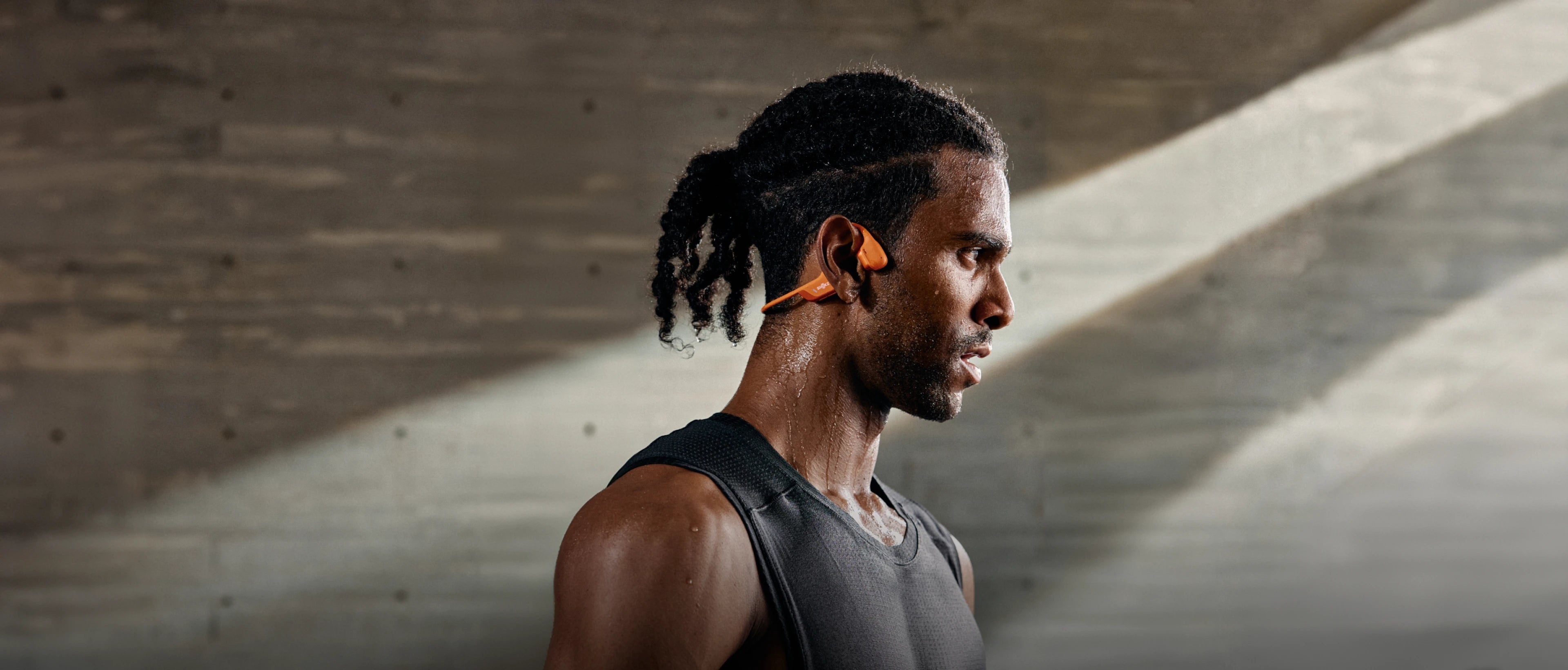
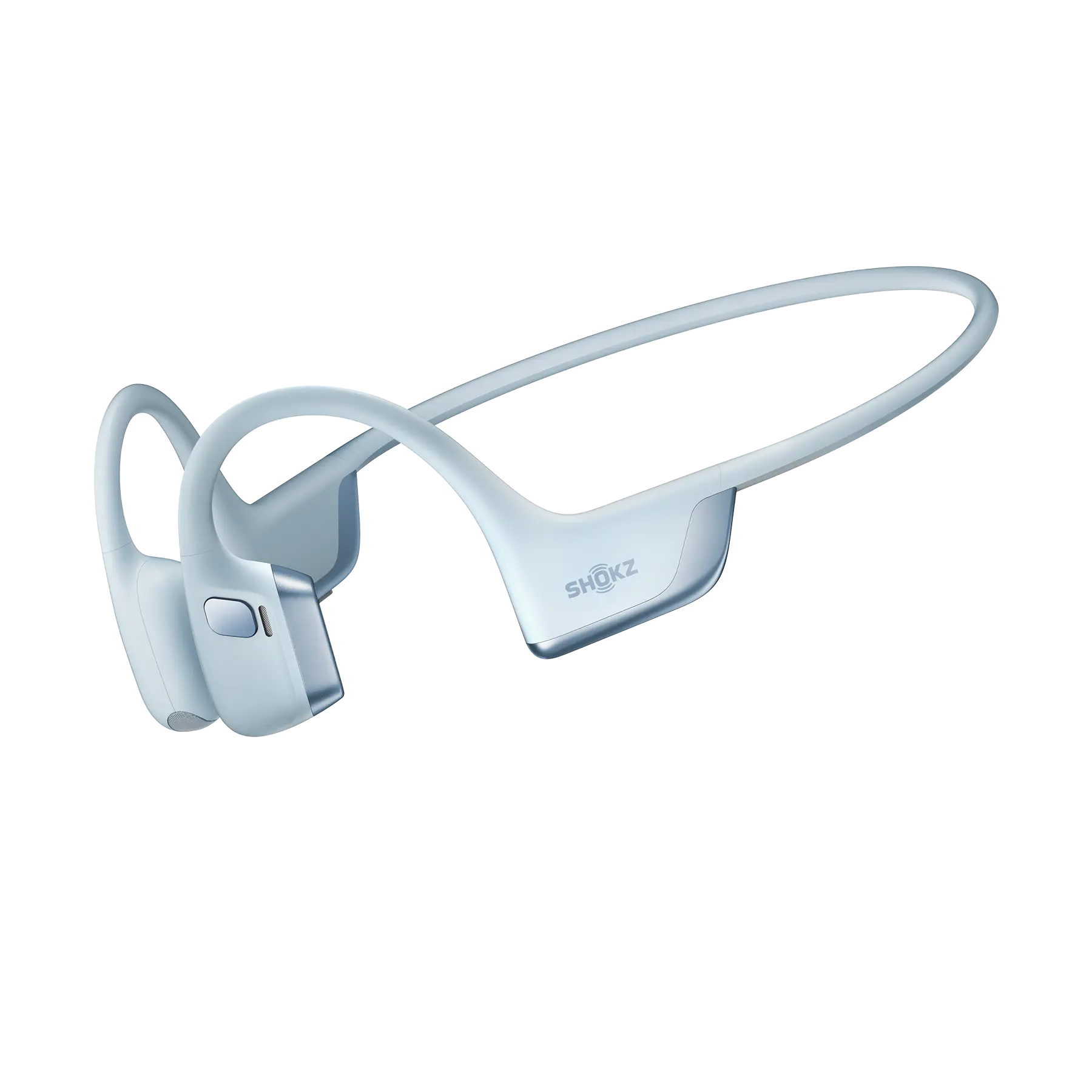
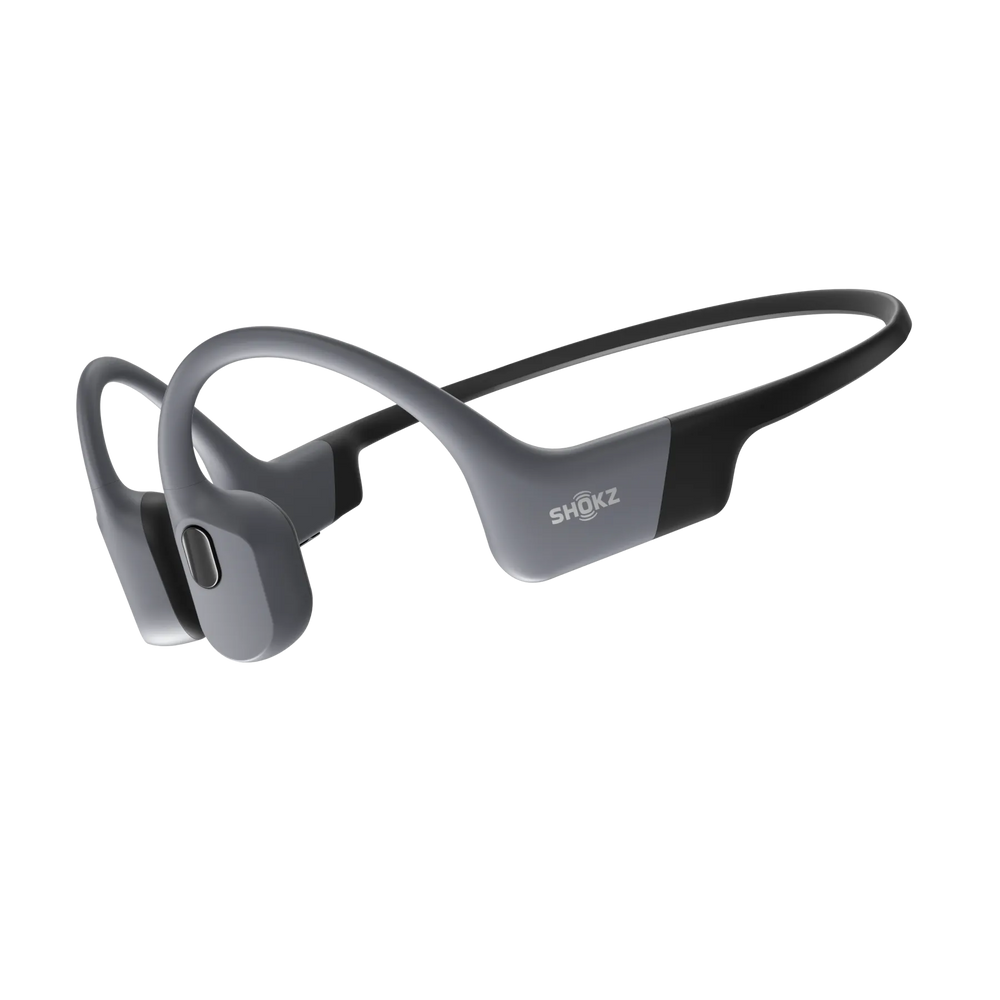
1. OpenRun Pro 2 – For People Who Enjoy an Active Lifestyle
The OpenRun Pro 2 uses bone-conduction audio, which sends sound through your cheekbones instead of down your ear canal. Because nothing blocks your ears, the sound stays perfectly consistent on both sides, even during intense workouts.
-
Why it helps prevent imbalance:
-
No ear tips: Zero earwax blockage or muffled sound.
-
Stable fit: Sound stays even while running or training.
-
-
Best for: Outdoor running, gym workouts, and cyclists who need situational awareness paired with balanced audio.
Tips: For more guidance on staying aware of your surroundings on the road, explore these cycling safety tips.
2. OpenFit Air – For Long Listening Comfort
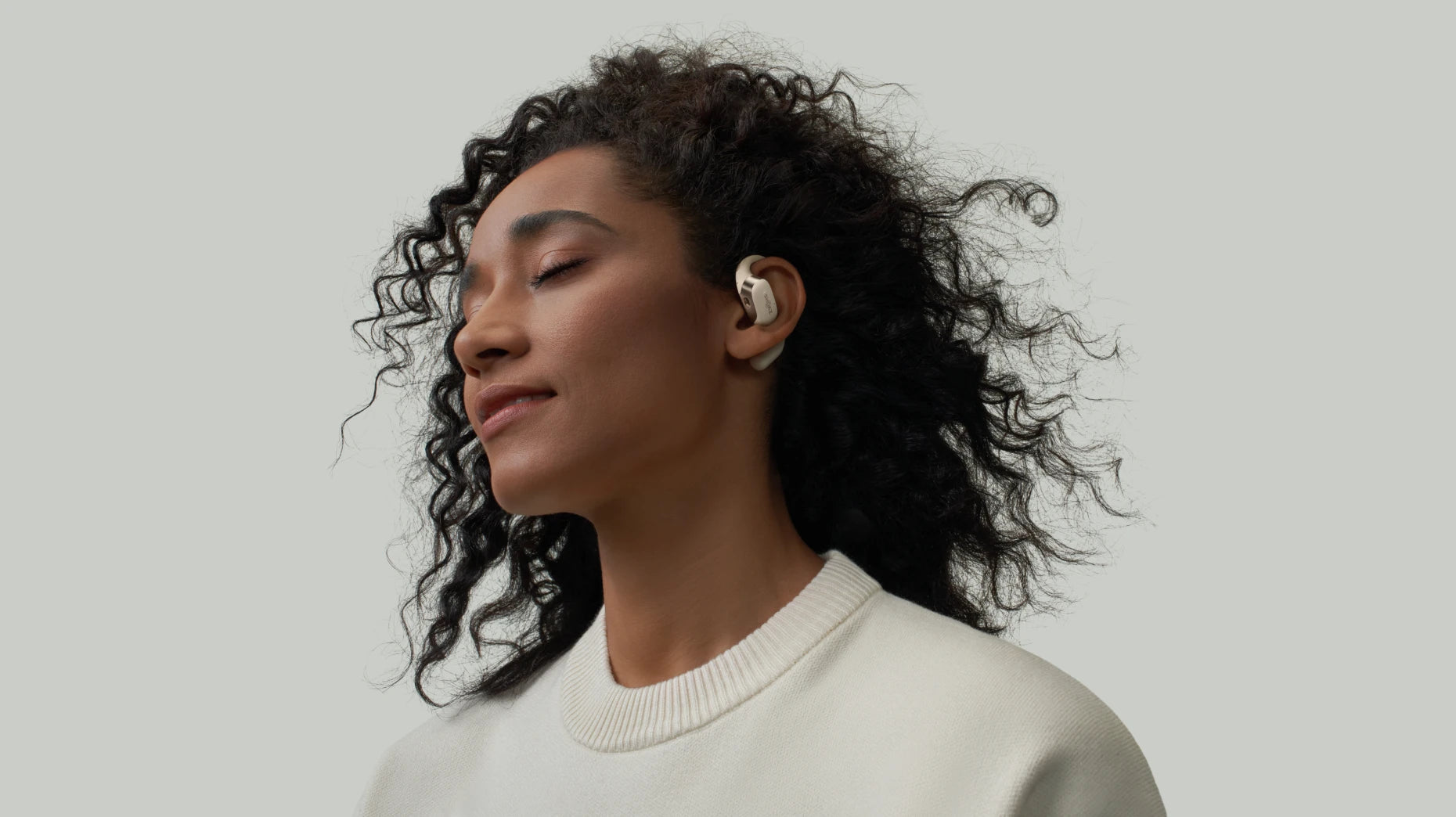
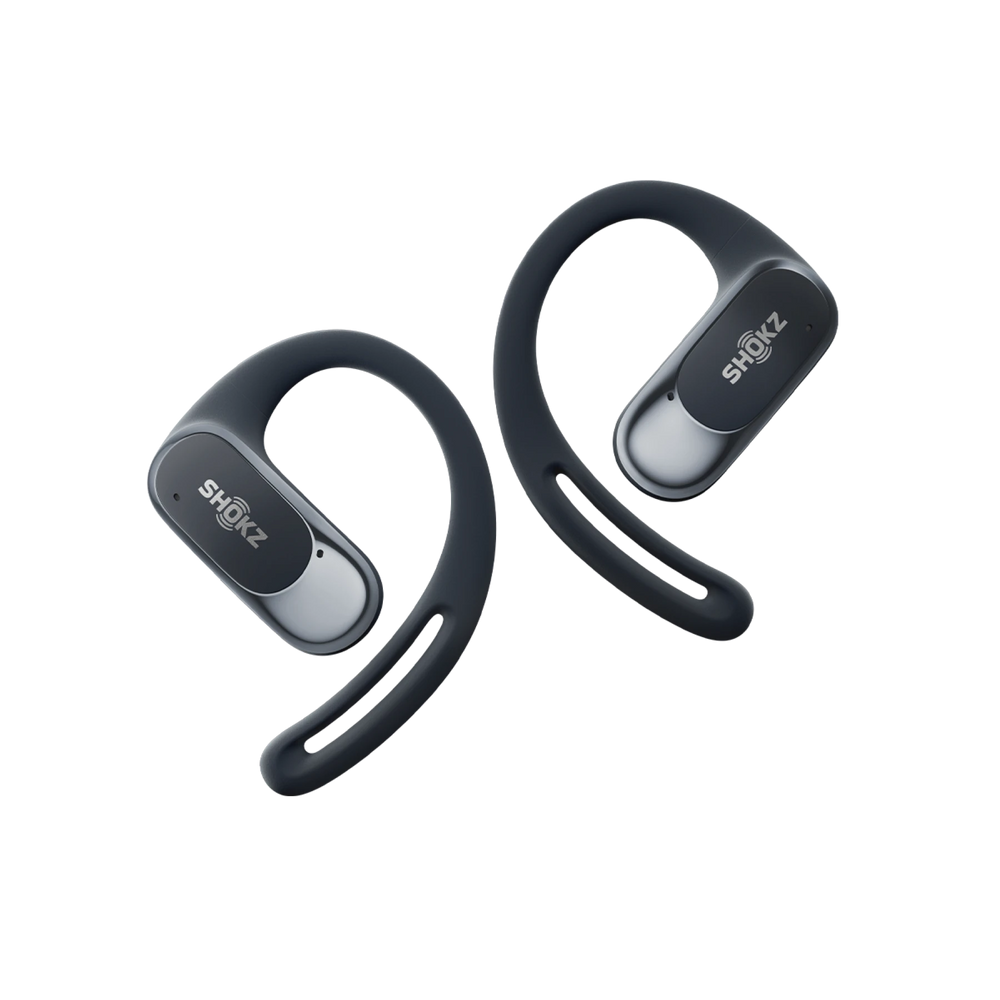
The OpenFit Air features an open-ear design with lightweight ear hooks. Its speakers sit just outside your ears, providing a natural, even soundstage without any pressure buildup.
-
Why it helps prevent imbalance:
-
The unique open-ear design naturally prevents uneven sealing or pressure differences.
-
Airflow reduces debris buildup that could affect one side.
-
-
Best for: Long listening sessions, conference calls, office work, and daily walks.
3. OpenDots ONE – For Connectivity-Focused Users
If your imbalance issues stem from Bluetooth drops or signal interference, the OpenDots ONE is specifically designed to maintain a highly stable, synchronized connection between both sides.
-
Why it helps prevent imbalance:
-
Strong connectivity cuts down on single-side dropouts.
-
Open-ear speakers ensure there is no physical obstruction between the left and right channels.
-
-
Best for: Commuting, travelling, and users in high-interference environments (like subways or busy offices).

4. OpenSwim Pro – For Swimming and Water-Friendly Workouts
The OpenSwim Pro keeps your audio consistent even underwater or in highly humid conditions. Its fully sealed design protects the internal components, preventing water or debris from clogging up one side.
-
Why it helps prevent imbalance:
-
Waterproof sealing prevents volume drops caused by moisture.
-
A secure fit keeps sound output stable while swimming lengths.
-
-
Best for: Swimming, triathlons, beach workouts, and training in the rain.
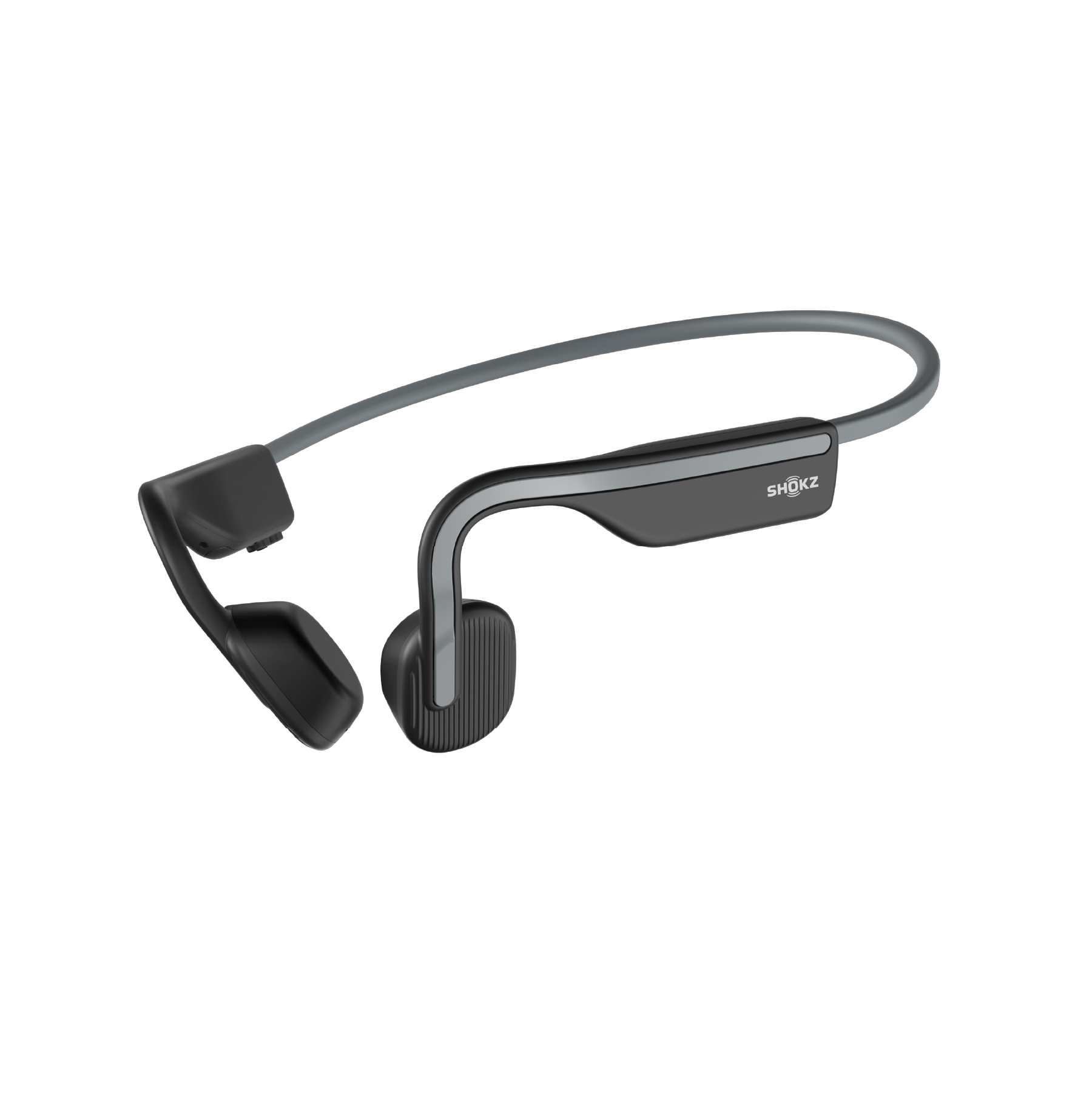
5. OpenMove – For Everyday Casual Use
The OpenMove offers dependable, balanced sound at a very accessible price point. The lightweight open-ear design completely eliminates pressure differences between your ears, making the left and right audio naturally even.
-
Why it helps prevent imbalance:
-
No ear tips to cause muffling or an uneven fit.
-
Reliable Bluetooth tech helps maintain a consistent volume.
-
-
Best for: Commuting, casual music listening, and everyday phone calls.
Quick Comparison of the Top Models
| Earbud Model | Best For | Why It Prevents Imbalance | Key Advantage |
| OpenRun Pro 2 | Running and training | Zero ear-tip blockage; stable bone-conduction audio | Consistent audio, even during intense movement |
| OpenFit Air | All-day comfort | No pressure or sealing issues; resistant to debris buildup | Naturally balanced sound for prolonged wear |
| OpenDots ONE | Commuting and travelling | Strong connectivity prevents single-side dropouts | Highly stable left and right channel performance |
| OpenSwim Pro | Swimming and wet environments | Waterproof sealing prevents volume drops caused by moisture | Even audio, whether underwater or in high humidity |
| OpenMove | Everyday, casual use | Open-ear design avoids earwax blockage | Simple, reliable, and balanced sound for everyday listening |
Tips to Keep Your Earbuds Balanced
Preventative care is essential for maintaining consistent volume and ensuring the longevity of your audio gear.
Handle Earbuds Carefully
Avoid dropping your earbuds, especially on hard surfaces. This can easily damage the tiny internal speaker components responsible for your sound output. Treat them with care, just as you would any other sensitive electronic device.
Store Earbuds Properly
Always put your earbuds back into their charging case when you aren't using them. This protects them from dust, dirt, moisture, and accidental physical damage. Leaving them loose in a pocket, purse, or backpack is a recipe for debris buildup and malfunction.
Perform Regular Maintenance
Make it a habit to gently clean the speaker mesh and the silicone tips (if applicable) once a week. Use a dry cotton swab or a clean, soft-bristled toothbrush to brush away any visible residue.
Remove Dust From the Charging Case
The charging case itself can collect pocket lint and dust, particularly down in the charging wells. Use a can of compressed air, a dry cotton swab, or a soft cotton cloth to wipe the charging pins. This guarantees a proper, full charge for both earbuds.
Use Gentle Cleaning Tools
Never use sharp objects like pins or needles to clean the speaker mesh. You run the severe risk of puncturing the delicate membrane underneath. Stick to a soft, dry toothbrush or an official cleaning tool specifically designed for audio equipment.
FAQ
Q1: How Do I Get My Earbuds Back to Normal Volume?
A: First, check your device's audio Balance/EQ settings to make sure the slider is perfectly centred. Next, thoroughly clean the speaker mesh of the quieter earbud to clear out any earwax or dirt blockage. If the issue persists, perform a factory reset on the earbuds.
Q2: Can Earwax Cause Low Earbud Volume?
A: Yes. Earwax blocking the speaker mesh is the single most common reason why one earbud sounds quieter than the other. The blockage essentially muffles the sound, keeping the volume noticeably low.
Q3: Why Is One Earphone Quieter Even After Cleaning?
A: If your earphones are still quieter on one side after a good cleaning, the issue is likely software or connection-related. Take the following steps to try and correct the problem:
-
Check that both earbuds have equal battery levels.
-
Ensure your Bluetooth connection is stable.
-
Verify that your phone’s audio balance setting is centred.
-
Consider doing a firmware update or a full factory reset to restore proper audio balance.
Q4: How Do You Know When You Need New Earbuds?
A: You’ll know it’s time to replace your earbuds when sound imbalance or low volume issues can no longer be fixed using the recommended troubleshooting steps. Other clear signs include noticeably shorter battery life or persistently unstable Bluetooth connections. If there is visible physical damage to the speakers or the earbud housing, it's definitely time for an upgrade.
Conclusion
Experiencing uneven earbud volume is a common, albeit annoying, issue. In most cases, the fix is pretty straightforward. It might just take a quick cleaning or a minor tweak to your device's settings. Follow the troubleshooting steps outlined above and get into the habit of regular maintenance. When it's time to buy your next pair, opt for high-quality, reliably designed options like Shokz open-ear headphones. You'll significantly cut down on the chances of running into these problems and get back to enjoying robust, beautifully balanced music.
Author Information
Related Posts