How to Connect Bluetooth Headphones to Your PC: Quick Setup Guide
Connecting a Bluetooth headset to a computer is not complicated. Whether you are preparing for an important video conference, setting up a long gaming session, or simply want to enjoy your favorite playlist without cables, a stable connection makes all the difference.
This guide explains how to quickly and smoothly connect Bluetooth headphones to your PC. You will learn how to check compatibility, turn on pairing mode, and connect Windows and macOS users step by step. Follow these instructions and you'll be ready to enjoy clear wireless sound in just a few minutes.
OpenDots Series Coming Soon
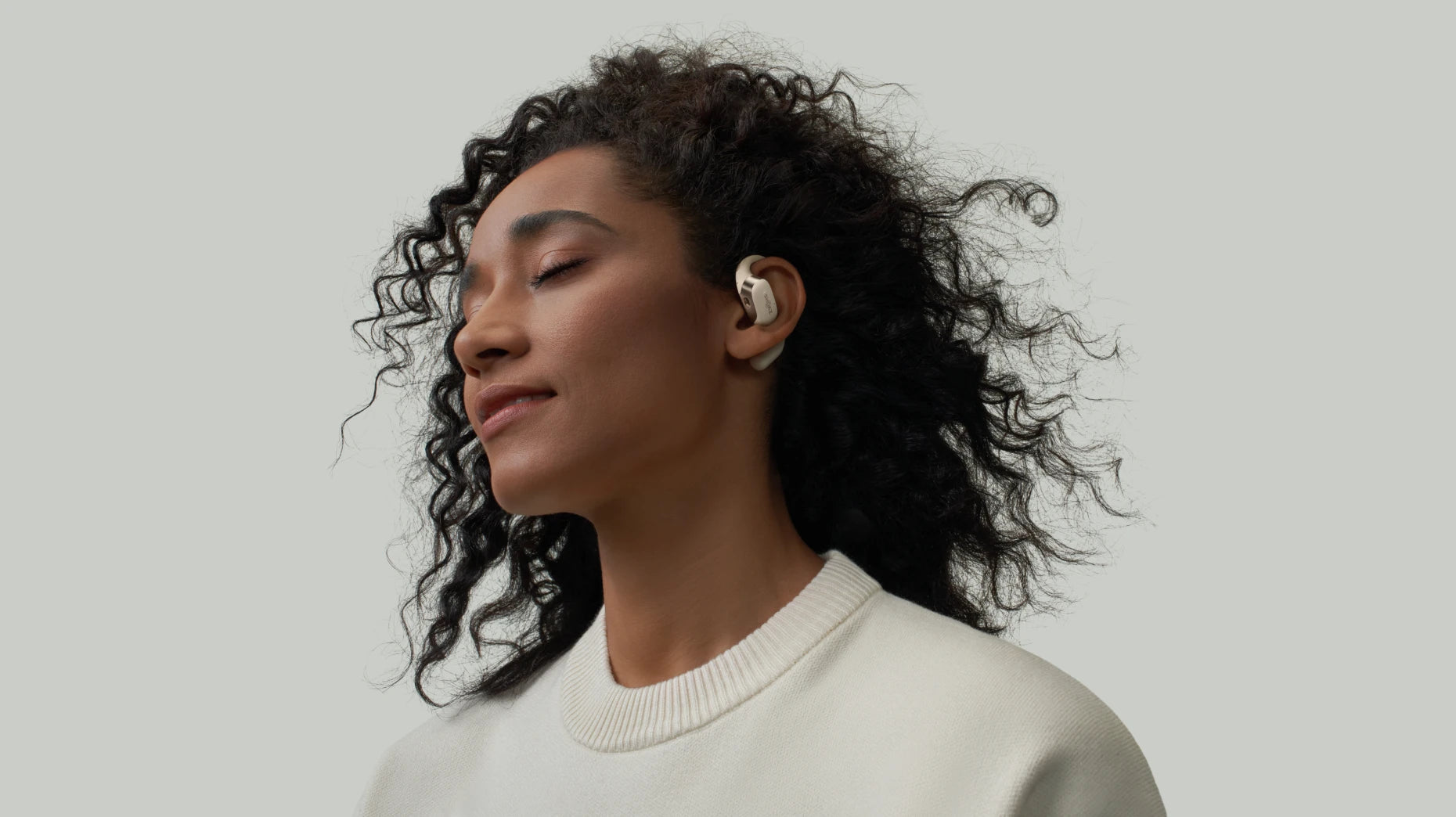
The new Shokz OpenDots series is coming soon! Discover the new look of our next-generation open-ear audio and join our campaign for a chance to win a pair of clip-on earbuds.
What You Need to Check Before Connecting Bluetooth Headphones to PC?
Before pairing your Bluetooth headphones, please take a few minutes to check the Settings.These quick steps can save you time and frustration.
1. Confirm Your PC Supports Bluetooth
Make sure your computer has Bluetooth functionality. Most modern laptops have it, but older laptops or custom desktops may not.
If your computer doesn't have it, you can easily add Bluetooth with a small USB encryptor - it's affordable and can be directly plugged into any USB port.
2. Locate Bluetooth Settings or Use a Dongle
On Windows 10 or 11, open Settings → Bluetooth and Other Devices, or simply search for "Bluetooth" in the taskbar.
If this option is not visible, your computer may not have Bluetooth enabled - just insert your USB dongle and wait for a few seconds, and it will appear automatically.
3. Prepare Your Headphones
Fully charge your wireless headphones and switch to pairing mode. Most models enter pairing by holding down the power button until the LED light flashes. For instance, the OpenComm2 2025 Upgrade pairs up very quickly and remains stable once connected, making it an excellent choice for both work and entertainment.
How to Pair Bluetooth Headphones with PC
Once your computer and headphones are both ready, it's time to pair them. The steps of each system are quite similar, and there are only minor differences between Windows and macOS.
For Windows 11 and 10
Windows makes pairing simple:
-
Open Settings by pressing Win + I.
-
Go to Bluetooth & devices (Windows 11) or Devices → Bluetooth & other devices (Windows 10).
-
Turn Bluetooth On, then click Add Device → Bluetooth.
-
Wait for your headphones to appear, select them, and confirm pairing.
Tip: If you don't see your device, please make sure it is still in pairing mode - some models may time out after 30 to 60 seconds.
For macOS
Pairing a Bluetooth headset with a Mac is equally simple:
-
Click the menu at the top-left corner.
-
Open System Settings (Ventura or later) or System Preferences (older macOS).
Select Bluetooth and turn it On. -
Wait for your headphones to appear under Nearby Devices, then click Connect.
If a prompt appears, please confirm the pairing request. Your headphones will now automatically reconnect as long as they are nearby.
Set Sound and Mic the Right Way After Connecting Bluetooth Headphones to PC
Matching is just the first step. Now let's make sure that your computer is indeed sending the sound to the right place and that your microphone is working properly.
Check Audio Output
Sometimes, even after pairing, your computer still uses its internal speakers. You need to manually switch to the Bluetooth headset.
On Windows
Click the speaker icon on the taskbar. A small menu will appear, showing the active audio device. Select Bluetooth headphones from the list and make sure all system sounds and media are played through them.
On Mac
Click the "Control Center" icon in the menu bar, select "Sound", and then choose headphones under the "Output" TAB.
Select The Correct Microphone
This step is crucial for video calls or online meetings. Your computer may default to using the built-in microphone, and the microphone often sounds very low or distant.
If you are using a communication headset like OpenComm2 2025 Upgrade, please make sure that its noise-cancelling boom microphone is the same as the one used in your system.
On Windows
Go to Settings → Bluetooth & devices → Sound. Under Input, select your Bluetooth headset’s microphone.
On Mac
Open System Settings → Sound, choose the Input tab, and select your headset’s mic from the list.
Tips to Keep the Connection Stable
Strong and stable relationships are very important - especially during meetings, speeches or remote working sessions. Follow these practical tips to reduce noise and keep your audio clear.
Keep Firmware and Drivers Updated
Update your headphones regularly through their app or website. In addition, keep your computer's Bluetooth and Wi-Fi drivers up to date - it can enhance performance, range and overall stability.
Manage Multipoint and Nearby Devices
If you're using multipoint Bluetooth headphones paired with multiple devices, they may briefly disconnect when switching between them.
When answering important calls, please turn off the multi-point mode or temporarily disable the Bluetooth function of other nearby devices.
Reduce Physical and Wireless Interference
Put your computer and headphones together. Avoid large metal objects, thick walls or overlapping Wi-Fi routers to prevent signal interference.
Monitor Battery Levels
Low power consumption will weaken the performance of Bluetooth. Before an important meeting, make sure your headphones and computer have enough battery power to last the entire meeting.
Open Ear Headphones You Can Try For PC
A stable and high-quality connection starts with the right headphones. Here are two advanced options specifically built for PC use and professional environments.
OpenComm2 2025 Upgrade
Designed for professionals working remotely or on the go, OpenComm2 2025 Upgrade offers the flexibility you need for home offices or coffee shops. Its open-ear bone conduction design ensures all-day comfort while letting you stay aware of your surroundings—whether it's a delivery knock or background chatter.

-
Reliable Bluetooth: Fast and stable pairing with built-in Bluetooth on Windows or Mac.
-
Clear Call Quality: DSP noise-canceling boom microphone ensures your voice stays clear during meetings or calls.
-
Open-Ear Comfort: All-day comfort with 7th-generation bone-conduction design — stay aware of your surroundings while connected.
-
Easy Setup: Simple Bluetooth pairing through standard PC settings; no extra software required.
-
Battery Life: Up to 16 hours of talk time or 8 hours of listening, with 5-minute quick charge for 2 hours of talk time.
OpenComm2 UC 2025 Upgrade
For structured office environments and enterprise-level reliability, OpenComm2 UC 2025 Upgrade steps up with the Loop 110 USB adapter and just plug in to get clear, immediate audio. It’s perfect for hybrid teams that rely on team meetings, providing consistent performance across multiple PCs without pairing hassles.

-
UC-Certified Integration: Certified for Microsoft Teams and Zoom; provides seamless controls and professional audio performance.
-
Enhanced Range: Up to 30 m (98 ft) wireless range, maintains a strong signal even when you step away from your desk.
-
Low Latency: Real-time audio response ensures precise, delay-free communication.
-
Long Battery Life: Its battery life includes up to 16 hours talk time,8 hours listening, plus quick charge (5 min = 2 hours).
-
Water Resistance: IP55 protection against sweat and splashes; not intended for water immersion.
FAQs
Why is my audio in mono or low quality?
This usually occurs when your computer routes sound through a "hands-free phone" (HFP) profile instead of a high-quality "Advanced Audio Distribution Profile" (A2DP).
Switch your output to stereo mode unless you are using a microphone.
Can I use my headphones on both my phone and PC?
Yes. Multi-point pairing allows two devices to be used simultaneously, but it may cause brief connection interruptions. If an interruption occurs, please temporarily disable multi-point or disconnect other devices.
Why is there a delay when watching videos?
Bluetooth latency may cause minor synchronization issues. Using headphones with low-latency codecs (such as aptX LL) or dedicated adapters (such as Loop 110) can significantly reduce this latency.
Final thoughts
Connecting your Bluetooth headphones to your PC opens the door to true wireless freedom, for meetings, streaming or daily multitasking. By following the setup steps, you will enjoy clear and consistent sound with minimal effort.
If you want a professional-level experience, investing in a professional headset like the OpenComm2 UC 2025 Upgrade can ensure that your connection is as reliable as your work. Stay wireless, stay efficient - enjoy the clarity that comes with a day of good connection.
Author Information

guides on Shokz
Related Posts